Yuankai SmartDrawingWorkplace
Description
Yuankai SmartDrawingWorkplace is an auxiliary drawing software tailored for engineering design and manufacturing. It focuses on solving core inefficiencies such as dimensioning, bubble numbering matching, and version comparison when handling multi-version and multi-level engineering/process drawings.
Utilizing advanced dimension text recognition algorithms, the tool automatically extracts key dimension data from engineering and process drawings, enabling automated bubble numbering and matching. This significantly reduces manual processing time and error rates, ensures data consistency and accuracy, and ultimately boosts overall development efficiency.
Features
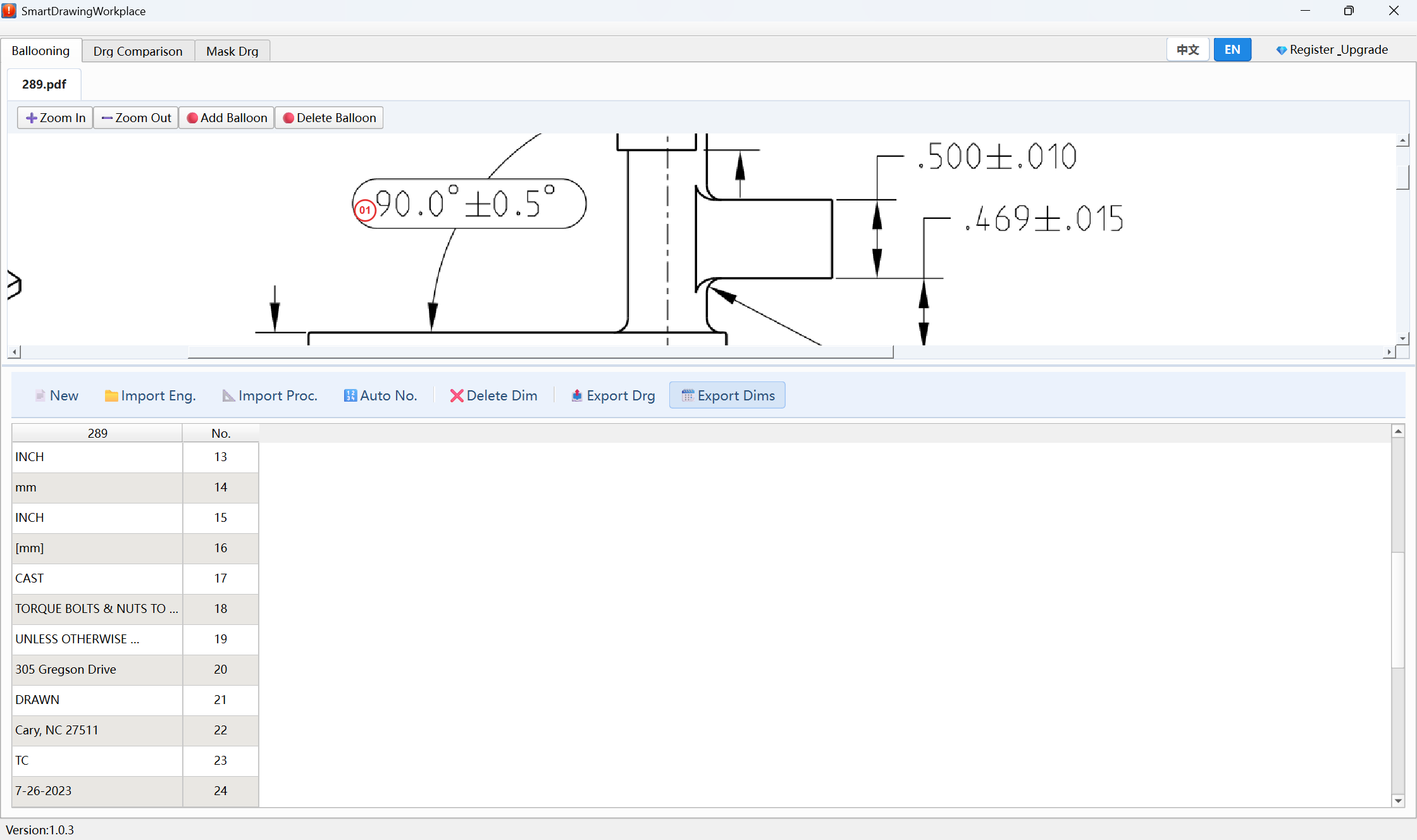
Link one engineering drawing with multiple process drawings via dimension text, and mark balloons in sequential order.
Menus

1New Project: Clear all drawings and data from the previous session.
2Import Engineering Drawing: Support importing a single engineering drawing.
3Import Process Drawing: Support importing a single process drawing (Simple Mode) or multiple process drawings.
4Auto-Number: Once drawings are imported, automatically link all files, generate sequential balloon numbers, and display balloons in the PDF preview area.
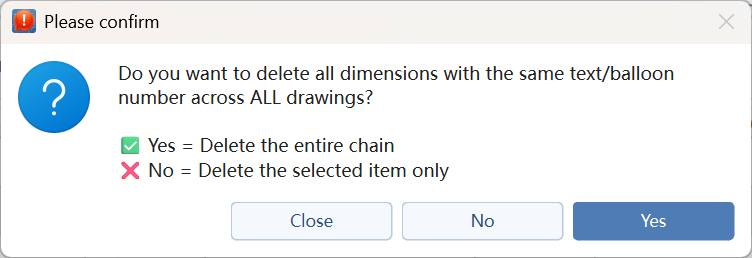
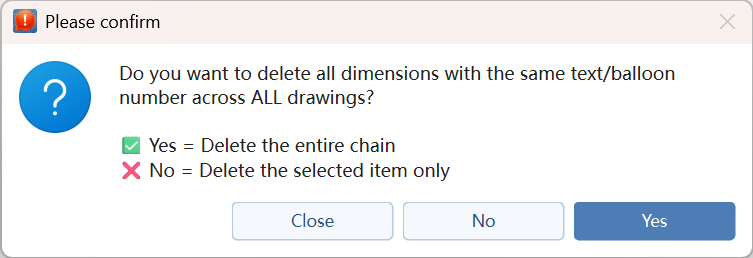
5Delete Dimension: If a dimension text does not require a balloon, select the dimension text cell and click Delete Dimension to remove it. If a balloon number is not needed, select the balloon number cell and click Delete Dimension to remove it. This operation supports deleting the item from either the current file only, or across all files.
6Export PDF: Click Export PDF to export all balloon-marked PDF files within the current project.
7Language Toggle: Click the button to switch between Chinese and English.

Drawing Preview Area
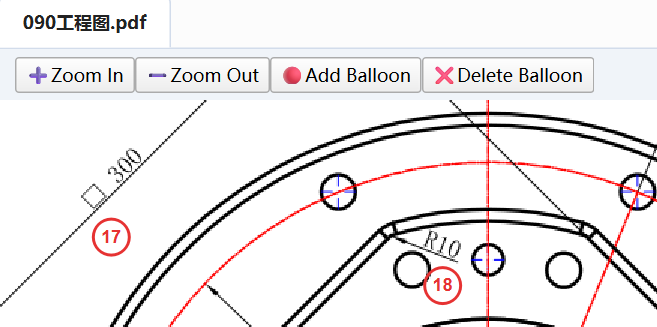
1Zoom In: Enlarge the drawing view in the PDF preview area.
2Zoom Out: Shrink the drawing view in the PDF preview area.
3Add Bubble: Manually add balloons in the preview area. Click the button, then click anywhere in the preview to add the bubble ID and dimension text. The dimension table will update accordingly.
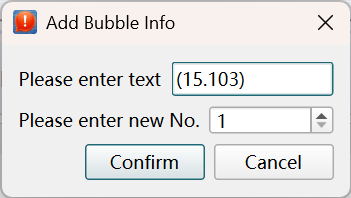
4Delete Bubble: Manually remove balloons in the PDF preview area. Click Delete Balloon, then click on an existing balloon to remove it. The dimension table will update accordingly.
5Move Bubble: Left-click on a bubble and drag it to modify its location.
6Modify Bubble: Double-left-click a bubble to edit its number and dimension text. Ensure that 'Add Bubble' or 'Delete Bubble' is not selected.
Dimension Table

1Column Data: Each drawing occupies two columns; the first column contains the dimension text, and the second column displays the bubble ID.
1Row Data: Each row represents dimension texts identified under the same bubble ID
2Left-Click Cell: Click a cell to jump to the corresponding dimension text area in the Drawing Preview Area
Note: Dimension text may occasionally mismatch. Please review and manually correct any errors.
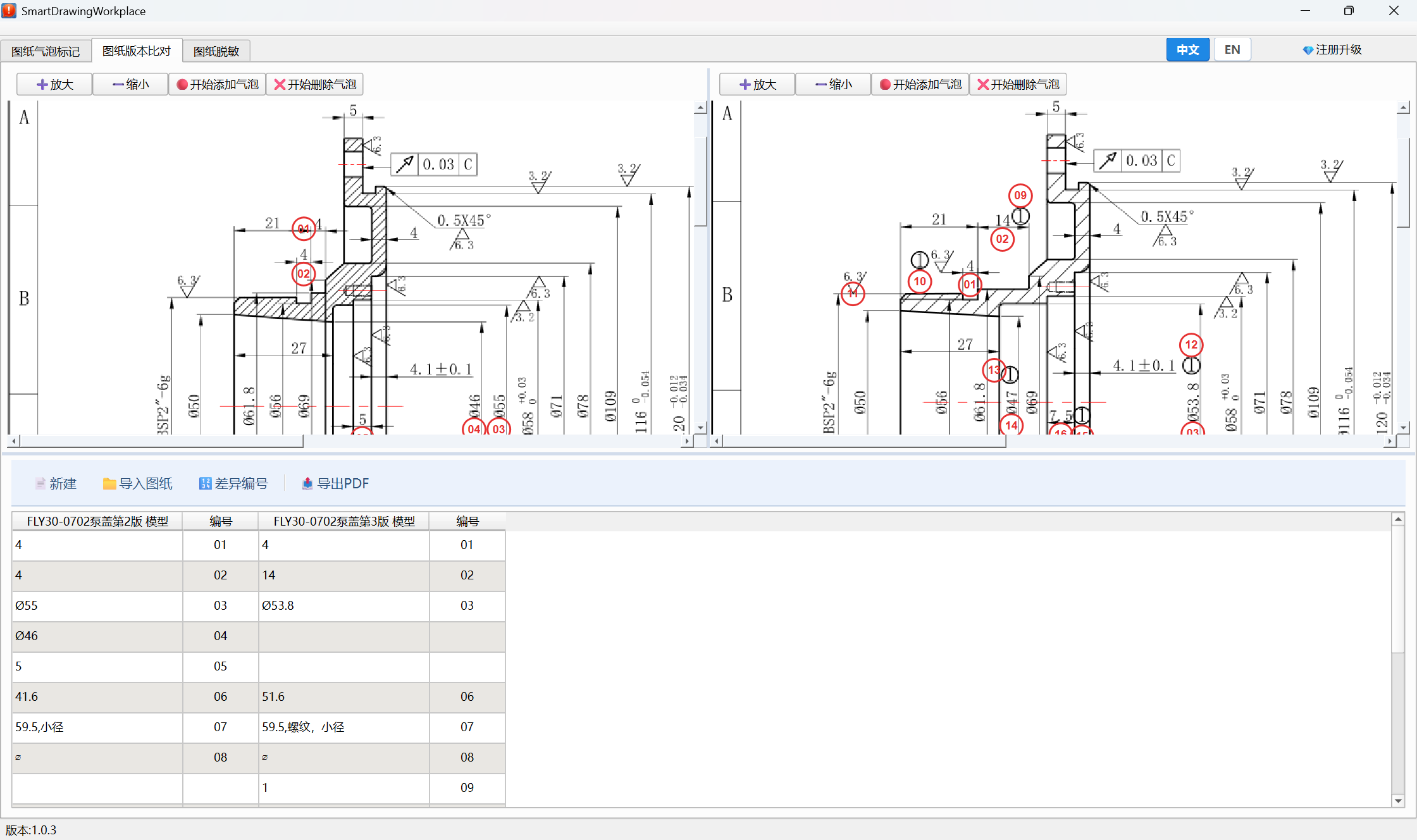
Compare dimension texts across different drawing versions, and assign bubble numbers to the discrepant dimension texts.
Menus

1New: Create a new workspace and clear all drawings and data from the previous session
2Import Drg: Import two drawings for comparison. You can import them simultaneously or one by one
3Diff No.: Number the dimension texts with deviations
5Delete Dim: If a dimension text does not require a bubble number, select its cell and click the button. A dialog box will pop up, asking whether to delete the text only from the current drawing, or to remove all identical texts/bubble numbers across all drawings.
4Export Drawing: Export all drawing PDF files with labeled bubble numbers.
5Language Toggle: Click the button to switch between Chinese and English.
Drawing Preview Area
1Zoom In: Enlarge the drawing view in the preview area.
2Zoom Out: Shrink the drawing view in the preview area.
3Add Bubble: Manually add balloons in the preview area. Click the button, then click anywhere in the preview to add the bubble ID and dimension text. The dimension table will update accordingly.
4Delete Bubble: Manually remove balloons in the PDF preview area. Click Delete Balloon, then click on an existing balloon to remove it. The dimension table will update accordingly.
5Move Bubble: Left-click on a bubble and drag it to modify its location.
6Modify Bubble: Double-left-click a bubble to edit its number and dimension text. Ensure that 'Add Bubble' or 'Delete Bubble' is not selected.
Dimension Table
1Column Data: Each drawing occupies two columns; the first column contains the dimension text, and the second column displays the bubble ID.
2Row Data: Each row represents dimension texts identified under the same bubble ID
3Left-Click Cell: Click a cell to jump to the corresponding dimension text area in the Drawing Preview Area
Note: Dimension text may occasionally mismatch. Please review and manually correct any errors.
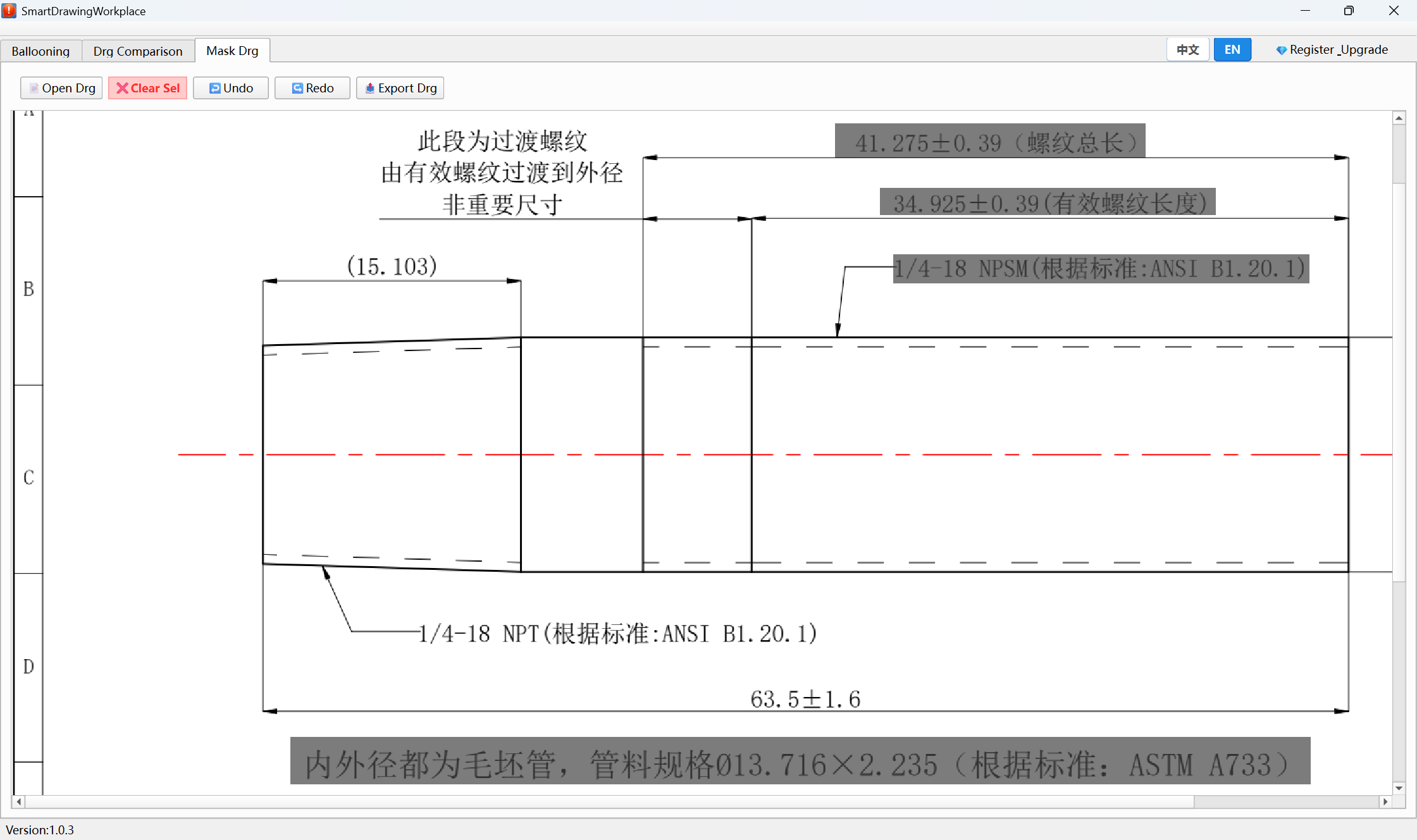
Sanitize sensitive information in drawings to protect private data. Once exported, the sensitive data cannot be recovered.
Menus

1Open Drawing: Open the PDF drawing that require data sanitization
2Clear Selectioin: Click the button, then draw a bounding box on the drawing to cover sensitive information.
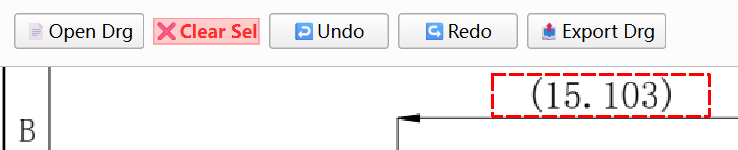
3Undo: Undo the last cleared area.
4Redo: Redo the last undone cleared area.
5Export Drawing: Export the sanitized drawing files.
6Language Toggle: Click the button to switch between Chinese and English.
Pricing Section
Product registration for this software is per-device.
A 1-month free trial is available, followed by a "use-now-pay-later" billing model (usage fee is post-paid after each month of normal use). This offers a total of 2 months of full features: 1-month standard trial plus 1-month advance usage.
1Free Plan/Simple Mode
- HKD $0, Simple Mode
- Permanent free access to all basic features
- Full access to all features during the trial period
- Full access to all features during the first usage period
- If payment is missing after subsequent periods, the system automatically switches to Simple Mode
- If a paid period ends without the next payment, the system automatically switches to Simple Mode
Premium Plan/Full Features
- HKD $199/Month, HKD $569/Quarter, HKD $1990/Year
- Enjoy full premium local features. We offer 1-month standard trial + 1-month extra grace period (Total 60 days of full features). No automatic charges, manual upgrade at any time.
Terms of Service
Last Updated: 2026-07-01
Welcome toYuankai SmartDrawingWorkplace("we," "our," or "us"). By accessing or using our software and services, you agree to be bound by these Terms of Service.
1Subscription, Evaluation, and Billing
- We provide a transparent, risk-free product evaluation path. Our service begins with a 1-month initial free trial, followed by an automatic 1-month grace period, granting a total of 2 months of full feature access. No credit card or payment method is required to experience this 2-month full-feature evaluation.
- Upon expiration of the 2-month period (1 month trial + 1 month grace period), if you do not manually purchase a paid subscription plan (Monthly, Quarterly, or Annual) via Stripe, your account will be automatically downgraded to our Free Tier (limited to basic features only). We will NEVER automatically charge you or lock your account without your explicit manual purchase.
2Local Processing & Security
- Yuankai SmartDrawingWorkplace is designed to operate locally. All drawings, charts, source data, and user files are processed entirely on your local machine. We do not transmit, collect, or store your intellectual property or project files on our cloud servers.
3Account & Security
- You are responsible for safeguarding your account login credentials. Any unauthorized use of your account must be reported immediately.
4Governing Law
- These terms shall be governed by and construed in accordance with the laws of Hong Kong S.A.R.
Privacy Policy
Last Updated: 2026-07-01
- At [Your Software Name], we are committed to protecting your privacy. This Privacy Policy outlines what information we collect and how it is handled.
- 1. Data Privacy: 100% Local Processing (CRITICAL)
- Your intellectual property is yours alone. All drawings, designs, geometric data, and uploaded user files are processed strictly within your local application sandbox.
- - We DO NOT upload your drawings or business data to our servers.
- - We DO NOT collect, store, or have any access to the content you create within the software.
- 2. Information We Collect
- We only collect minimal data necessary for user authentication and billing:
- - Account Information: Email address, username (for registration and login purposes).
- - Payment Information: All payments are securely processed by Stripe. We do NOT store or collect your credit card numbers or billing passwords on our servers. All such data is transmitted directly to Stripe.
- 3. Data Security
- We implement industry-standard encryption to protect your account metadata. Since your core data remains on your local device, you maintain full control over your project security.
Refund Policy
Last Updated: 2026-07-01
1Evaluation Period & Downgrade
- We provide a highly transparent and comprehensive evaluation period, consisting of a 30-day initial free trial plus a 30-day automatic grace period (totaling 60 days of full feature access). No credit card is required to start this evaluation. At the end of the 60-day period, you will NOT be automatically charged; instead, your account will simply be downgraded to our Free Tier (limited to basic features).
2Refund Eligibility
- Because we provide a generous 60-day window for all users to fully and thoroughly evaluate all premium local features before making any financial decision, all subsequent purchases for Monthly, Quarterly, or Annual plans are made entirely on a voluntary, manual basis. Therefore, all payments processed via Stripe are strictly NON-REFUNDABLE.
3Subscription Cancellations
- If you have purchased a paid subscription and wish to stop future recurring billing, you can cancel your subscription at any time through your account dashboard. Upon cancellation, you will not be billed for the next cycle, and you will retain full premium access until the end of your current paid billing period.
Release Notes
Current Version: 1.0.3
- Added drawing desensitization module
- Added text-bubble inputs in preview area to sync with dimensions table
- Added dimensions table export with data splitting support
Version: 1.0.2
- Added auto-sorting for dimensions table
- Other bubbles auto-release when moving a bubble
Version: 1.0.1
- Added drawing version comparison module
- Added Chinese and English bilingual support
Version: 1.0.0
- Implemented drawing bubble markup module
- Added drawing preview area
- Unified drawing dimensions table
- Optimized download/update interaction to prevent accidental closure